CGuardPro isn’t a single application. It’s a platform with three mobile apps — one for each person involved in the service — plus a web console for the office. Before you download the CGuardPro apps, it helps to know which one is yours: each requires a different type of account, and installing the wrong one won’t get you anywhere.
This guide covers what each app does, who it’s for, and where to download it, with real screenshots of each.
Overview: the three apps and the console
| App | Who it’s for | Android | iPhone |
|---|---|---|---|
| Mi Seguridad | The client who contracts the guarding service | Yes | Yes |
| C-Guard Pro Operaciones | The guard on post | Yes | Yes |
| C-Guard Pro Supervisor | The supervisor running the field route | Yes | Not yet |
| Web console (CRM) | The office: operations, HR, administration | Nothing to install | Nothing to install |
One rule saves a lot of confusion: every account signs in through its own app only. If a guard tries to log into the client app — or a client into the guard app — the platform stops them and points them to the right one. That isn’t a bug; it’s the separation that keeps each party’s information apart.
1. Mi Seguridad — the client app
This is the app for whoever contracts the service: the property manager of a residential community, the security lead at a plant, the person responsible for an office building, the owner of a store. It isn’t an app for guarding staff — it’s the client’s window into the service they’re paying for.
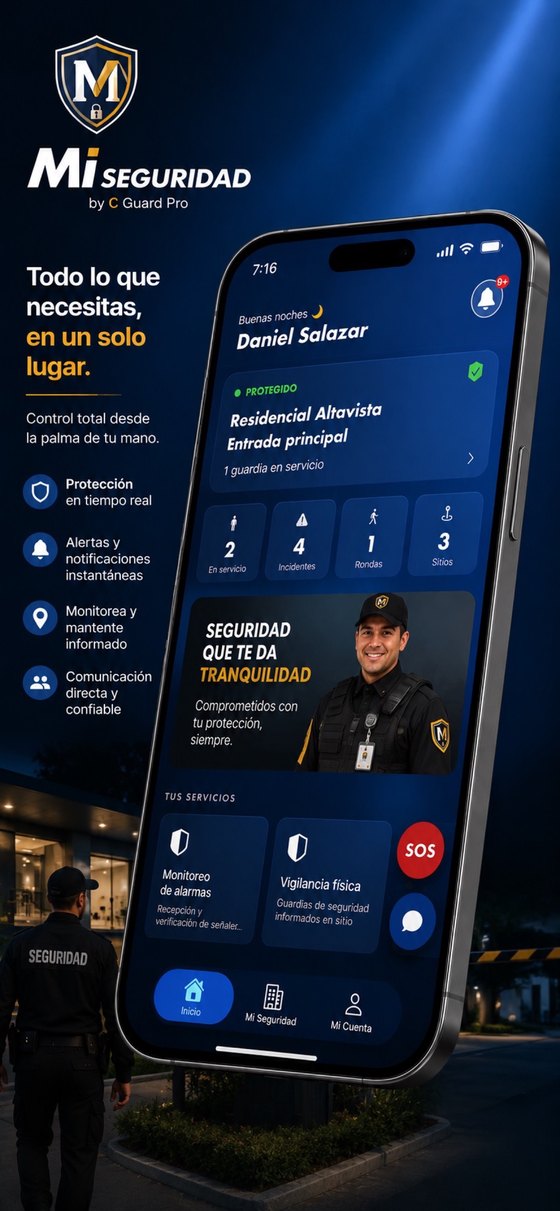 The moment the app opens, the client sees their site, how many guards are on duty and the day’s activity.
What the client can do from their phone:
- See who is protecting the site right now: guards on duty, assigned post and shift status.
- Get notified when a guard clocks in, when a relief happens, and when something is reported at their facility.
- Review reports and incidents with photo, time and location — no phone call to dispatch required.
- Check patrol history: which checkpoints were covered, at what time, and with what proof.
- Manage visitors: pre-register a visitor and send them a QR pass so entry is quick.
- Request tasks from the service and see which ones were completed.
- SOS button: fires the same emergency path as the guard’s panic button, with location attached, and reaches the control center immediately.
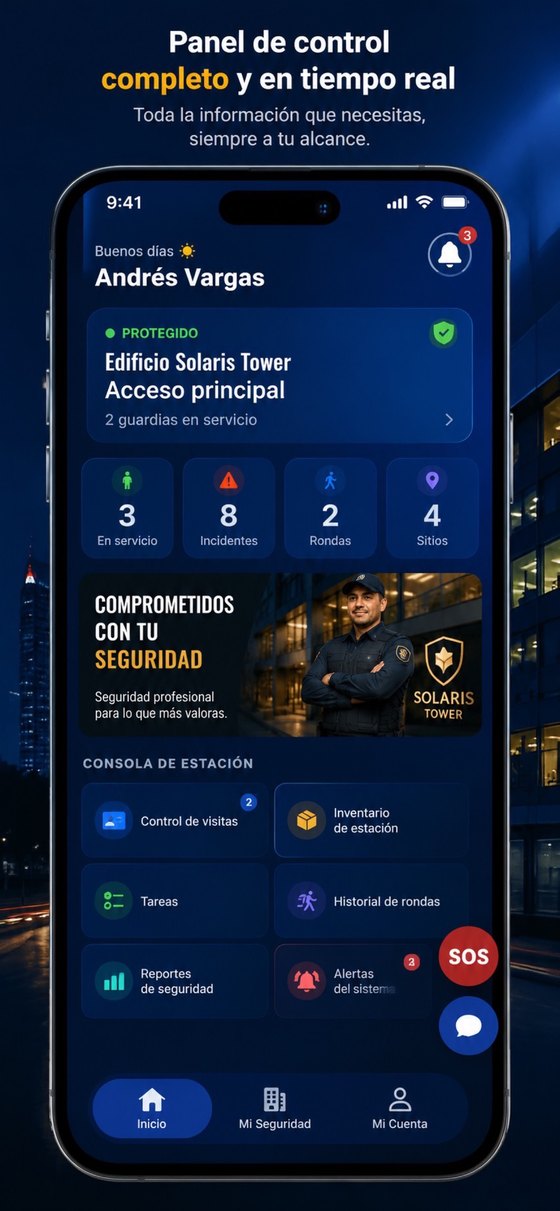 The client panel gathers visitor control, patrol history, tasks and reports on a single screen.
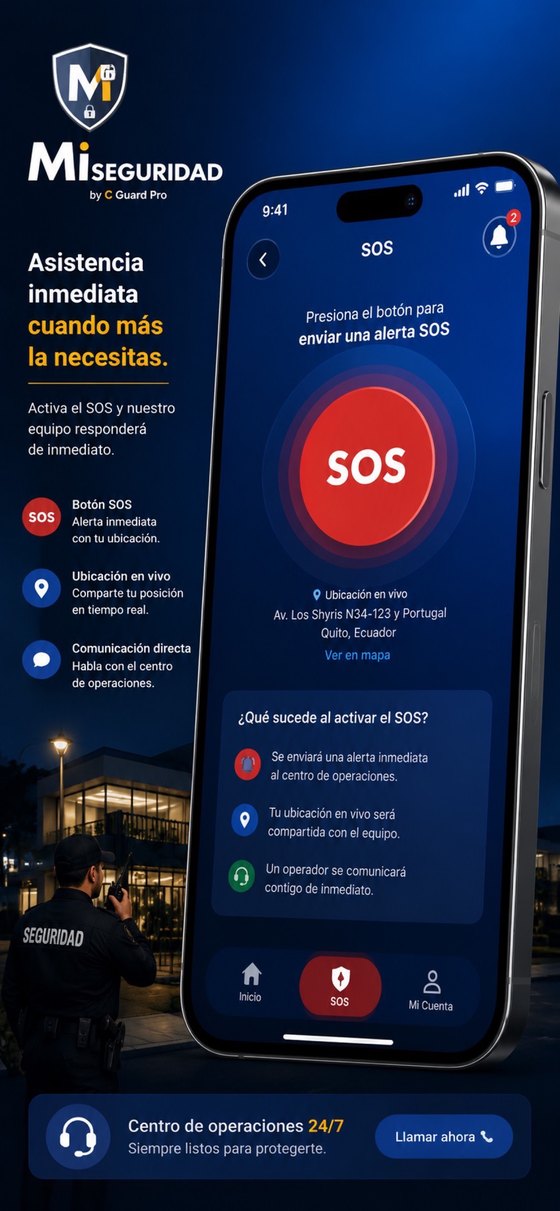 The client SOS isn’t a form: it triggers the full emergency path to the control center, exactly like the guard’s panic button.
Download:
- Android → Mi Seguridad on Google Play
- iPhone → Mi Seguridad by C-Guard Pro on the App Store
How access works. There’s no open sign-up: the guarding company creates the client account from its console, and the user gets an email invitation with a link to set a password. If your security provider hasn’t given you access yet, ask your account manager — it takes them a couple of clicks.
2. C-Guard Pro Operaciones — the guard app
This is the field app. The guard runs the entire shift from it: clocking, patrolling, reporting, logging visitors and staying in touch. It’s built for one-handed use with large buttons, and it keeps working when the site loses signal — it stores what you did and syncs as soon as the connection is back.
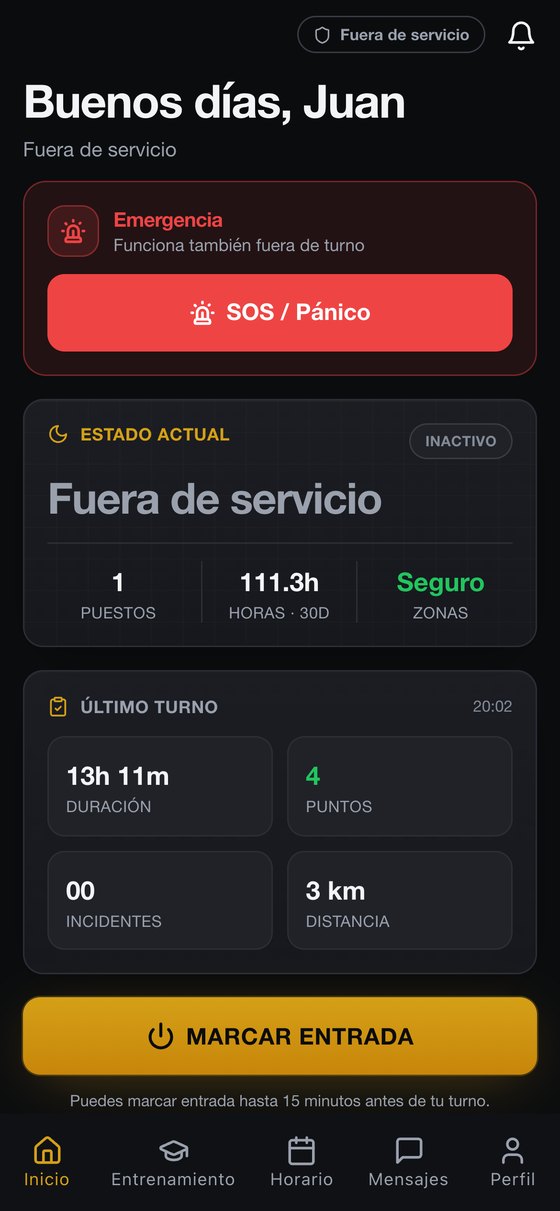 The guard’s home: shift status, last-shift summary, clock-in, and the panic button always in reach — it works off shift too.
What it solves during a shift:
- Clock in and out with location validation at the post, so attendance doesn’t depend on a paper logbook.
- Patrol rounds with checkpoints: start the round, scan each point and validate it with location, photo and notes. If the app closes or signal drops, the round resumes where it left off.
- Report incidents with type, priority, photo and location; they land in the log instantly.
- Log visitors: search by name or ID, register entry with a photo and vehicle details, or scan the QR pass the client issued.
- See the month’s schedule, shifts and approved time off, without phoning the office.
- Messages and radio with dispatch and the rest of the team, from the same phone.
- Shift tasks assigned by the office or the client, each with its own sign-off.
- Training: courses assigned by the company, with a quiz and a certificate.
- Personal performance: punctuality, patrol completion and attendance, calculated from what actually happened.
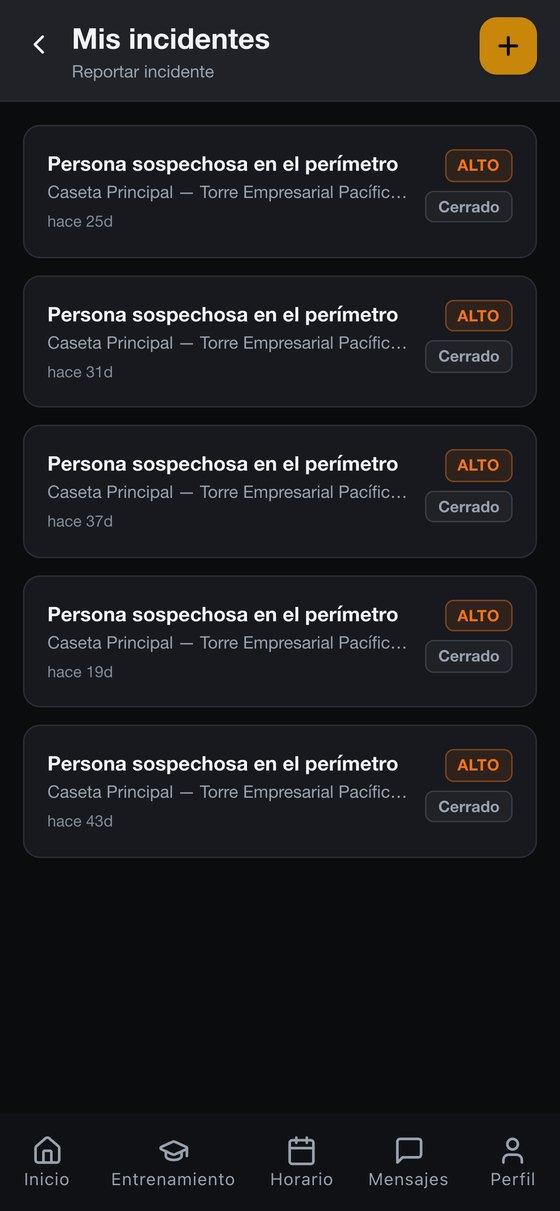 Every report carries its priority, time and site; the office sees it in the console the same moment.
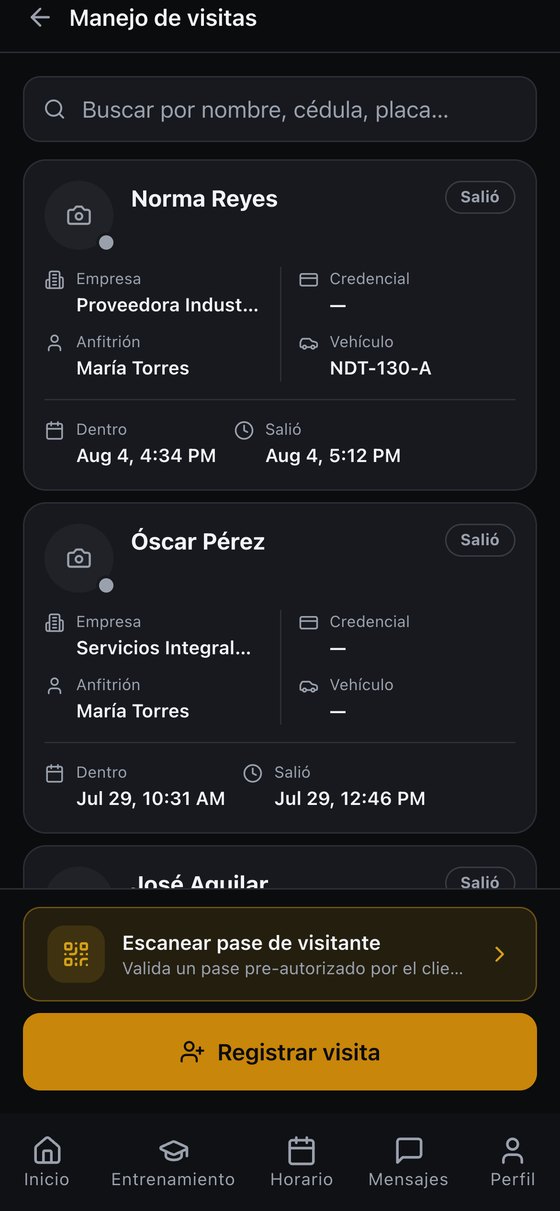 The visitor log replaces the paper book at the gate: details, vehicle, host and exit time.
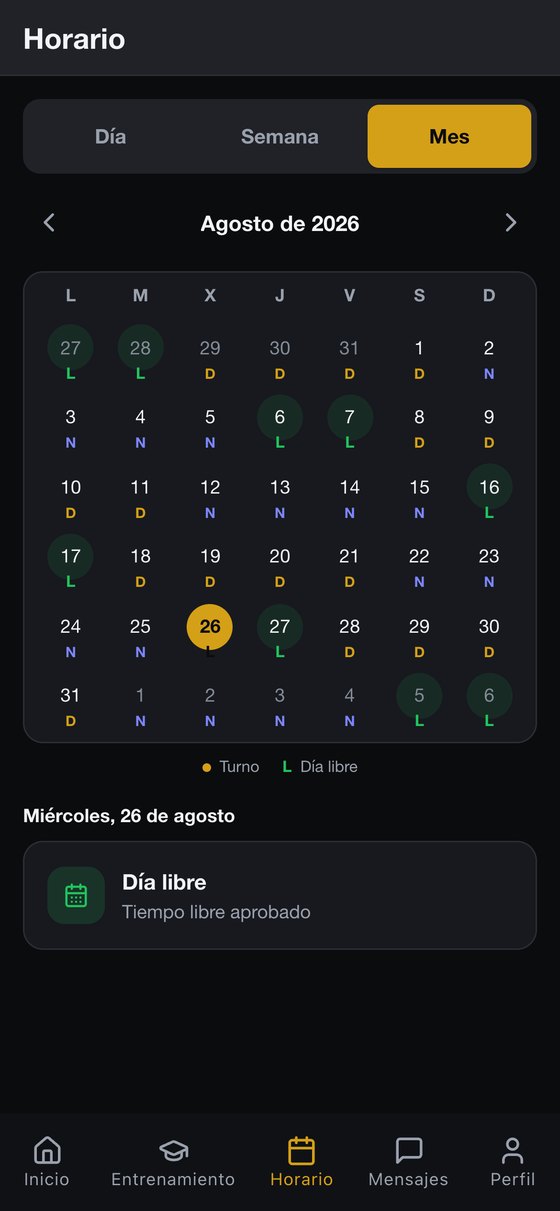 The month’s schedule on the phone: assigned shifts, days off and approved leave.
Download:
- Android → C-Guard Pro Operaciones on Google Play
- iPhone → CGuardPro on the App Store
How access works. The guard gets an email invitation from the company — branded with their employer’s logo and carrying the download links — or the administrator hands over the credentials. Guards can’t create their own account. There’s more about this app on the mobile app page.
3. C-Guard Pro Supervisor — the supervisor app
A supervisor doesn’t sit at one post; they cover several. Their app is built around that reality — a map, a list of posts to visit and the tools to resolve things on site — and works as a command post in the pocket.
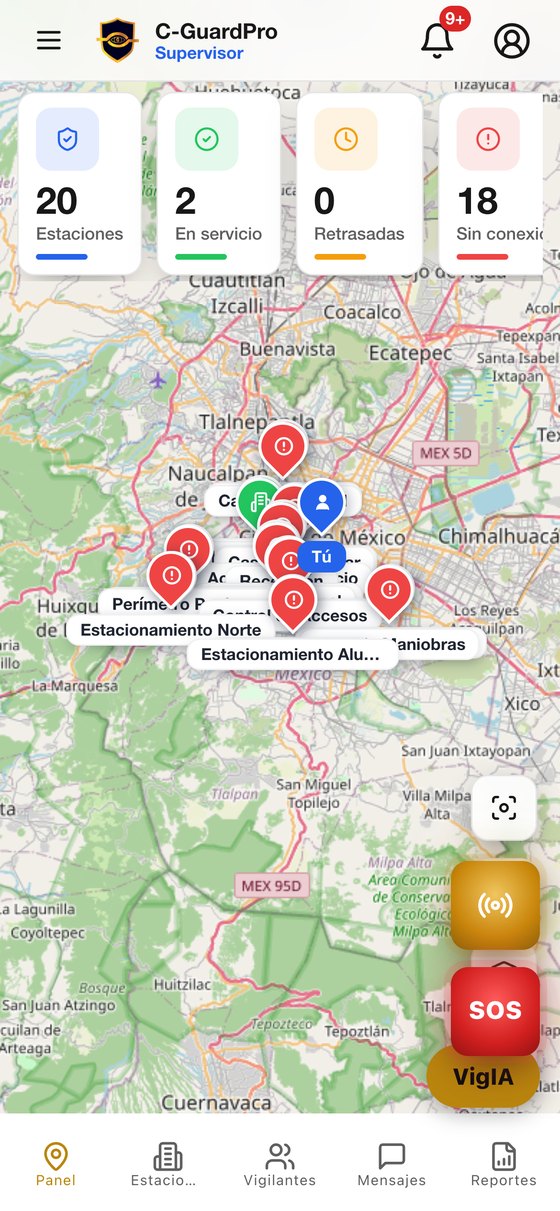 The dashboard opens on the operation map: active posts, guards on duty, late arrivals and posts that are offline.
What it does on the route:
- See the whole operation on a map, including their own position and every post.
- Run the vehicle patrol route stop by stop, completing each site’s checks with notes and photos, and opening phone navigation with one tap.
- Review each station: who’s assigned, today’s incidents, pending tasks and the estimated time to get there.
- Reach their people instantly: call, chat or navigate to a guard straight from their card.
- Handle reported incidents with the attached evidence, and follow them through to closure.
- Watch live coverage: which posts are covered and which aren’t — the question that actually matters at 3 a.m.
- Confirm backups and coverage, review attendance and run uniform inspections.
- Zone reports with export, so they don’t have to wait on the office.
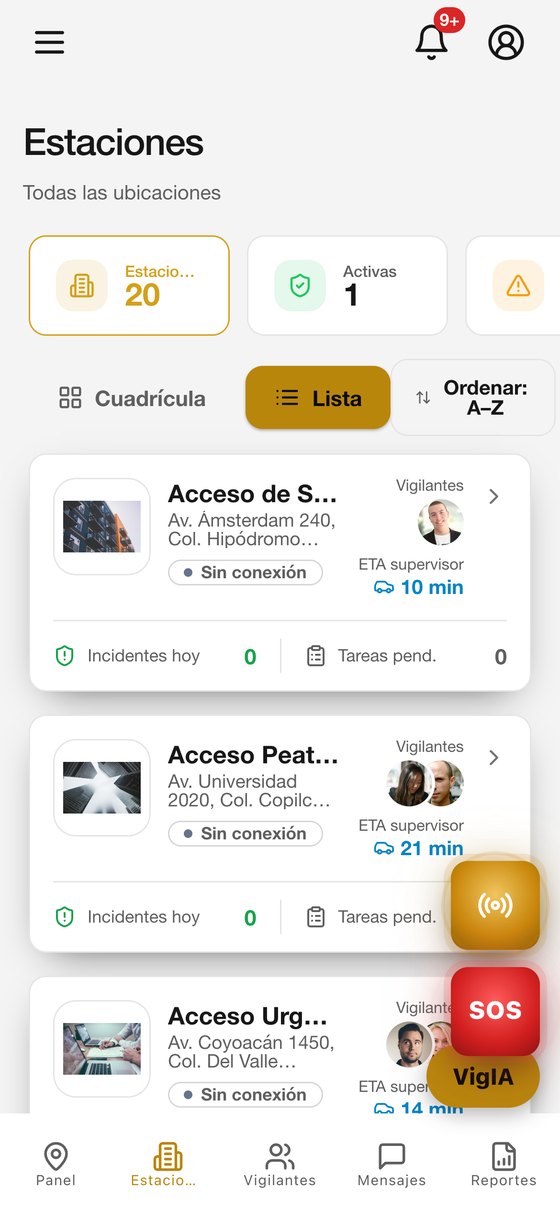 Each station shows its status, the guards assigned and how long it takes the supervisor to get there.
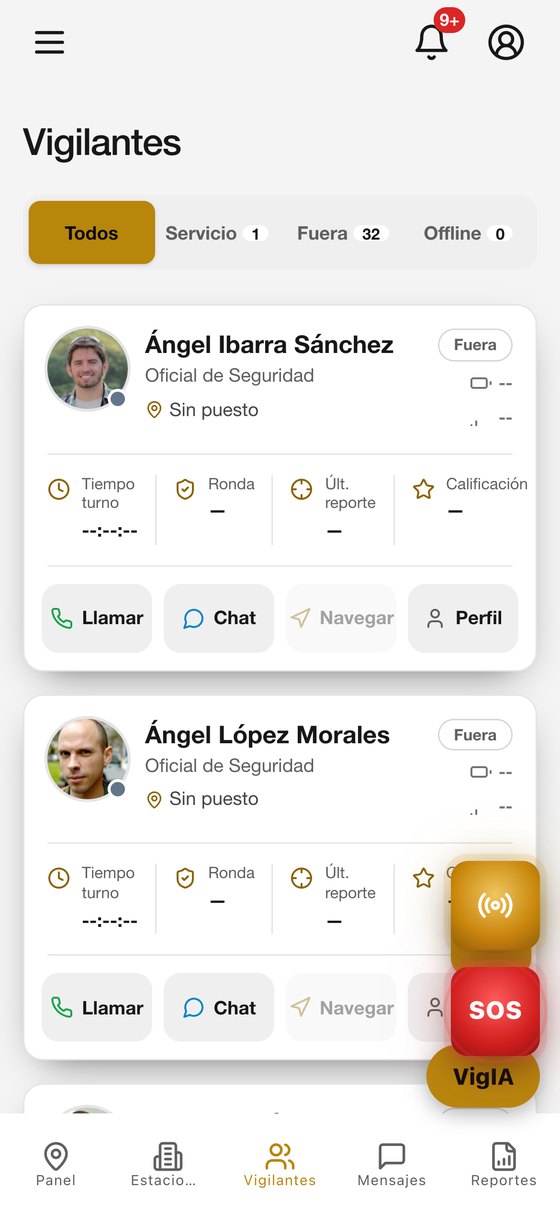 From a guard’s card, the supervisor calls, writes or navigates to the post without leaving the app.
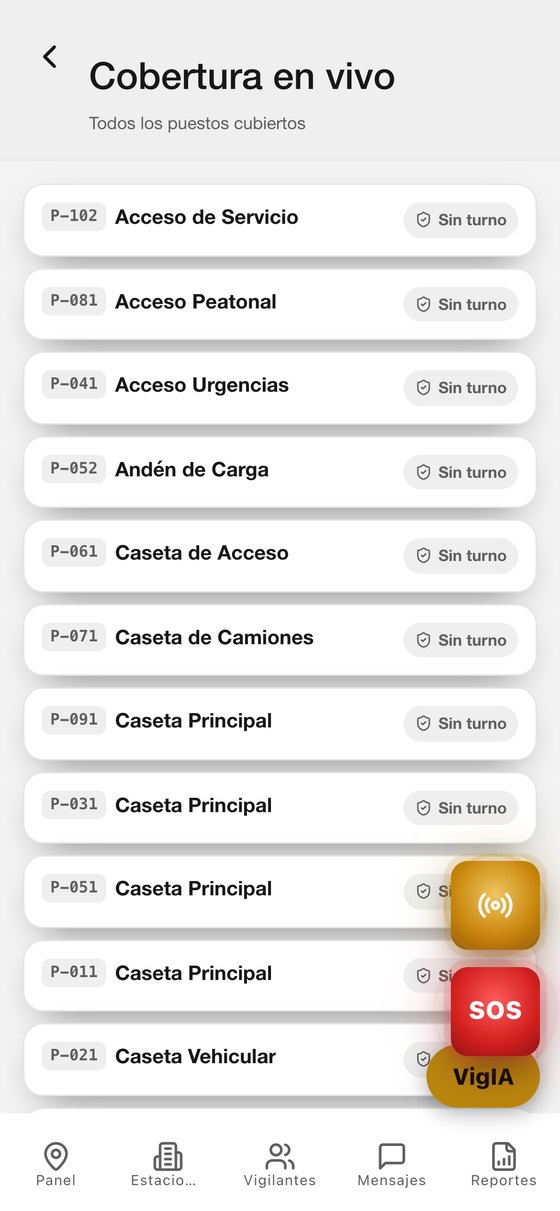 Live coverage: every post that should be manned, and its real status right now.
Download:
- Android → C-Guard Pro Supervisor on Google Play
- iPhone → not published yet. If your supervision team is on iPhone, get in touch and we’ll confirm the status and the alternative for that team.
Worth clearing up a common mix-up: the supervisor app is not the guard app under another name. They are two different applications, and a supervisor account only signs into its own.
The web console: the office installs nothing
Operations, HR and administration work in the web console, which opens in a browser — there’s nothing to install. That’s where the shift roster is built, reports are reviewed, clients and posts are managed, attendance is controlled and reporting is produced. Everything the three apps do lands there in real time, and everything configured there flows back down to the apps.
Before you install: account, permissions and battery
Account first, app second. All three apps ask for a username and password on the first screen; there’s no guest mode and no public sign-up. If the email invitation expired, ask for a new one — invitation links expire for security reasons.
Permissions aren’t optional. For the app to do its job, it needs:
- Location — it backs clock-in at the post, patrol validation and the position on the map. On guard and supervisor phones, grant it in the background as well.
- Camera — incident photos, checkpoint evidence and visitor registration.
- Notifications — shift reminders, incidents, tasks and emergencies. Without this permission, an alert can go unnoticed.
Watch battery saver. On several Android phones, aggressive battery saving kills background apps; for guards and supervisors, exclude the app from that optimization or notifications will arrive late.
Keep the app updated. Leave automatic updates on in the store: fixes and improvements arrive that way, and an old version can miss newer features.
FAQ
Can I use the same account across all three apps? No. Each account belongs to a role and signs in through that role’s app. A supervisor account won’t open the guard app, and vice versa.
I’m a client — do I pay for the app? No. The apps are free to download; access is enabled by the security company you contracted.
Does it work without internet? The field apps keep working with intermittent signal: they store what you recorded and sync when the connection returns. What does need a live connection is anything that travels in the moment, such as an emergency alert.
I changed phones — do I lose anything? No. Install the app on the new device and sign in with the same account; the information lives in the platform, not on the phone.
I forgot my password — do I have to call the office? No. From the sign-in screen you can request a recovery link with your email and set a new password yourself.
In short
Three apps, three audiences: Mi Seguridad for the client, C-Guard Pro Operaciones for the guard and C-Guard Pro Supervisor for the supervisor — the last one on Android for now. The office installs nothing and works from the browser.
If you don’t use CGuardPro yet and want to see how the three pieces connect in a real operation, get in touch or look at the plans.